Pre-launch documentation. Storely is preparing for launch. These guides describe the product workflows; availability and setup may change. Contact us about launch availability.
Reference guide
Inventory, master cartons, and lots
Select a client in Inventory to review its stock. Use Master Cartons for product and location detail, or Inventory Lots for lot status, expiry, and available quantities.
Workflow reviewed November 12, 2026. Screens and actions depend on your account configuration and permissions.
Review product totals
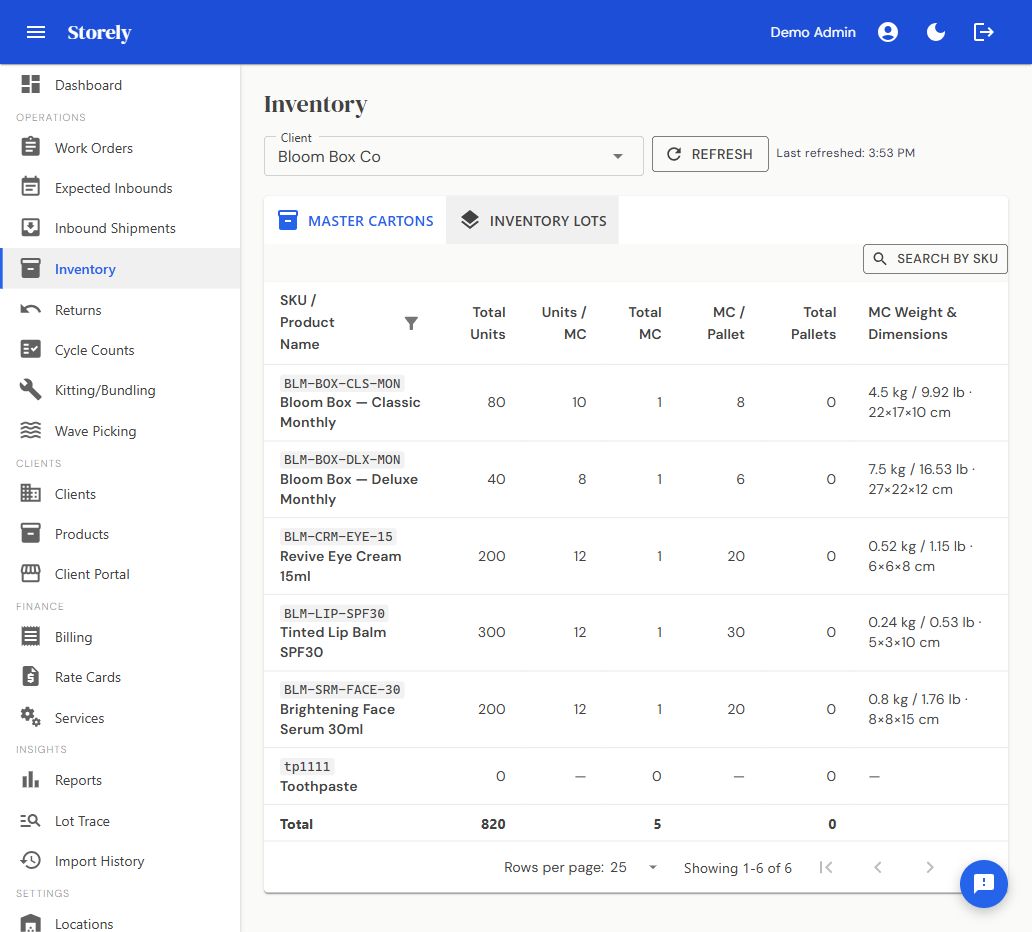
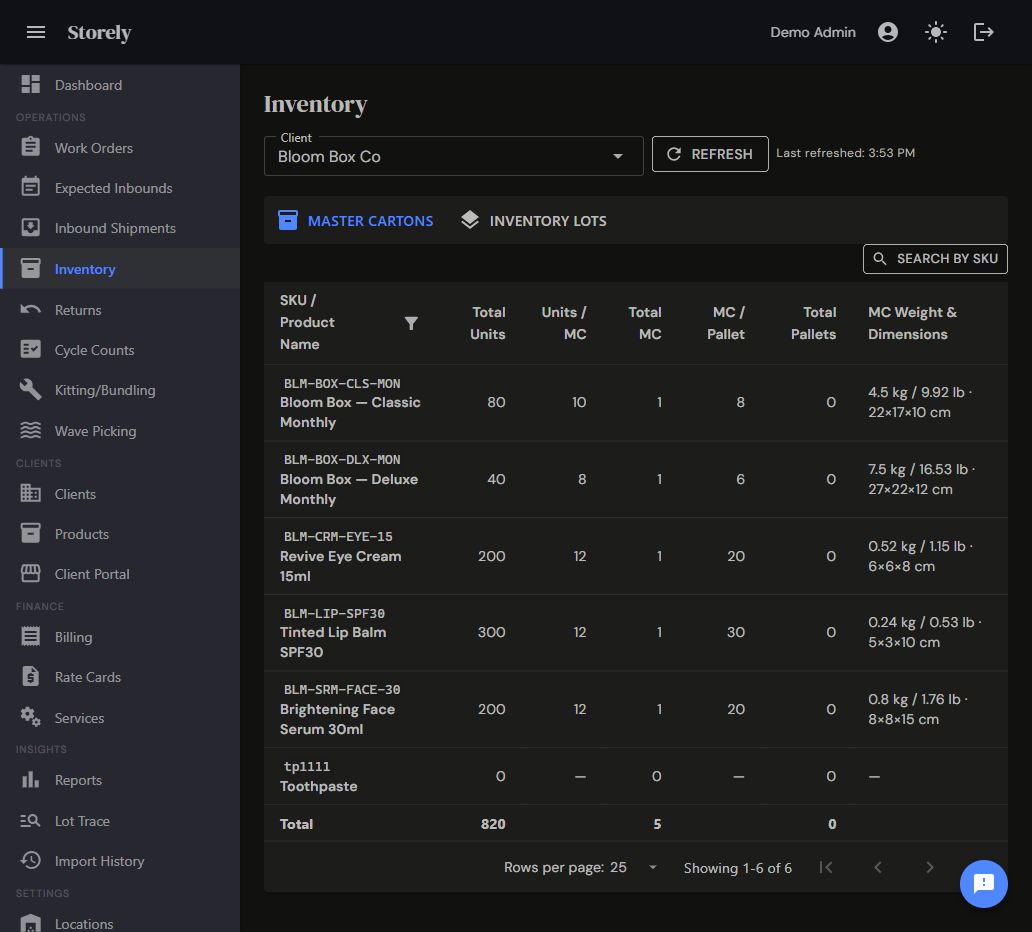
Open Inventory, select the client, and use the Master Cartons tab. Each product row shows its SKU and name, total units, units per master carton (MC), total master cartons, master cartons per pallet, total pallets, and carton weight and dimensions. A dash means a value is not configured.
Use the SKU / Product Name column filter to narrow the list. Clear all filters removes active filters. Search by SKU opens a search for a product's details. Use the table footer to review totals for the displayed selection.
Find stock by warehouse location
- Select a product row to see its locations.
- Select a location to expand its master cartons.
- Review carton quantities and location details before taking an inventory action.
- Use Back to all products to return to the summary.
The product heading includes a control to open the matching product record in Products. Inventory actions, including consolidation or adjustment, depend on the selected carton and your permissions. Review the reason and quantity before saving a stock change.
Understand on-hand, allocated, and available quantities
The Inventory Lots tab shows product, quarantine status, lot or serial number, expiry date, on-hand units, allocated units, available units, and receipt date. On-hand stock and stock available for a new order are different: existing allocations and stock status affect what can be used.
Enable Show quarantined lots to include quarantined stock. Where your permissions allow it, a lot offers Quarantine or Release. These controls change stock status; they are not filters. Confirm the intended action and reason before saving.
If inventory looks missing
- Confirm the selected client and clear any column filters.
- Check both Master Cartons and Inventory Lots.
- Include quarantined lots when investigating stock held out of normal use.
- Use Refresh to reload the view, then check the related receiving record or order allocation.
See receiving for bringing stock in, orders and fulfillment for allocation, and daily operations for cycle counts and returns.