Pre-launch documentation. Storely is preparing for launch. These guides describe the product workflows; availability and setup may change. Contact us about launch availability.
Reference guide
Billing & invoicing
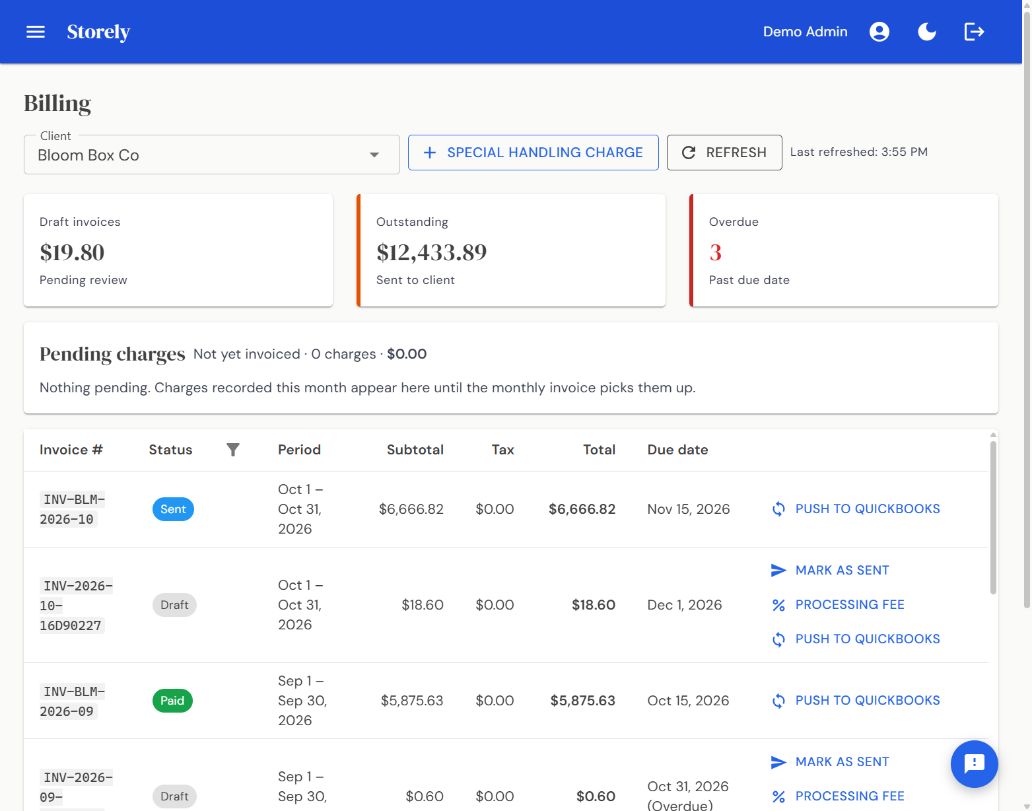
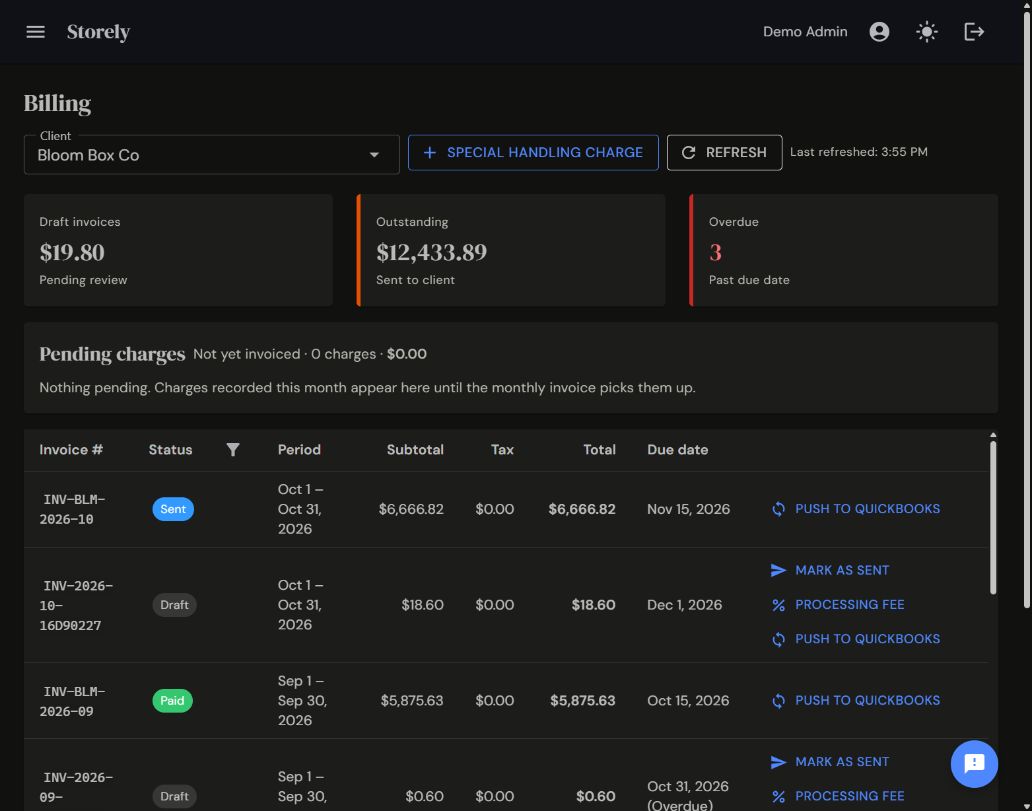
Storely calculates warehouse charges from client rate cards and also supports manually recorded special handling and service charges. Review pending charges before they become invoices.
Workflow reviewed November 12, 2026. Billing requires an Admin or Manager account with billing enabled. Select a client to see its charges and invoices.
How charges post
Storage is charged monthly. Receiving and shipping charges post the moment you click Finalize on a shipment or order — see Receiving in depth and Orders & fulfillment for where that button lives. If you're on the Kitting/bundling & assembly add-on, assembly job charges post the same way.
Invoices generate automatically
There's no manual "generate invoices" step — Storely creates one invoice per client automatically on the 1st of each month, covering every billing event from the period. Open Billing to review the line items on each invoice and mark it Sent once you're happy with it — the client sees it immediately in their portal.
Missing charges
If a charge type is missing from an invoice, it's almost always because it's missing from that client's rate card. Add the line item under Rate Cards before the next billing cycle runs. For a charge that should have shown up on an invoice already generated, email [email protected] — invoices aren't regenerated automatically once created.
Record and review pending charges
In Billing, select the client, then choose Special handling charge to record a one-off charge. If active services are configured for your account, Service charge is also available. Check the quantity, rate, description, and any reference before saving.
Saved charges appear under Pending charges until the monthly invoice includes them. A manual special handling charge can be edited or voided while pending. A service charge can be voided and recorded again to correct it. These actions are not available once the charge has been invoiced; contact support about corrections to an existing invoice.
Check your company time zone
An Admin can set Settings → Company time zone and choose Save time zone. This controls billing day and month boundaries, storage days, document dates, and report date ranges. If no company time zone is set, these dates follow UTC. Times displayed on screen still use each person's time zone. Changing the company time zone does not move charges already recorded into a different billing month.
QuickBooks sync (Pro plan)
With QuickBooks Online connected and enabled for your account, use Push to QuickBooks on an eligible invoice in Billing. A failed push can show Retry QuickBooks push. Review the result before retrying; this is an invoice-push workflow, not a promise of two-way accounting reconciliation.
On QuickBooks invoice items, map each charge type or service to the QuickBooks item you want to use. Several charges can share an item. Storely sends its description, quantity, and rate for each charge. An unmapped charge uses a service item named after the charge when first pushed, creating it if needed. Review mappings before pushing invoices, especially if an item was deleted or made inactive in QuickBooks.